(630) 353-4000
 info@entrustsol.com
Download and Install
The following section takes you through the download and installation process for the Gas HCA Tool. To proceed with this installation, you must currently have ArcGIS Pro and ArcGIS Desktop installed on
your system. To obtain Esri’s ArcGIS Pro and ArcGIS Desktop products, visit the respective Esri websites.
Download
To get started with the Gas HCA download, please visit the Gas HCA Tool package ready for download link by clicking here.
Install
The Gas HCA Tool is installed using your Windows Installer from a Windows
Installer package (.msi) file; installation of the Gas HCA Tool is
straightforward if you have previously installed software applications on your
Windows machine. The Gas HCA Tool installer writes files to various Windows
system directories, including:
-
-
Program files
-
-
-
Python directory for ArcGIS Desktop
-
-
-
Python directory for ArcGIS Pro
-
The Gas HCA Tool installer requires you to have read and write access to these directories at runtime.
Instructions for installing the Gas HCA Tool are provided using Windows 10 Pro.
-
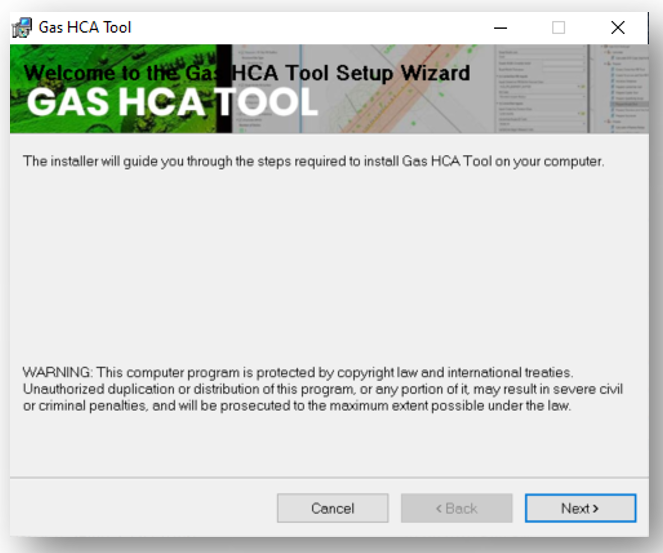
To begin downloading the Gas HCA Tool installation process, double-click on
the Gas HCA Tool setup program (GasHCA_1.x._Setup.msi) to open the Gas HCA
Tool Setup Wizard. Press ‘Next’ to continue with installation.
-
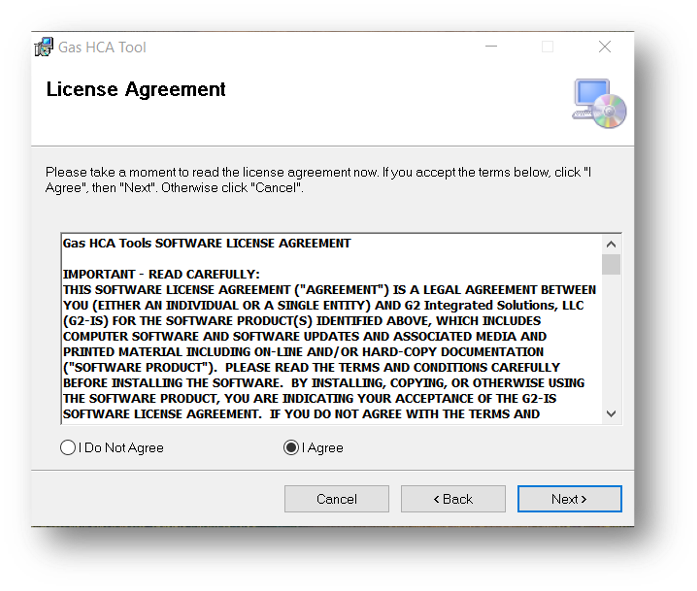
You must review the license agreement and click the ‘I agree’ radio button. Then, select the ‘Next’ button to continue with the installation. Otherwise, select
the ‘Cancel’ button to end the installation.
-
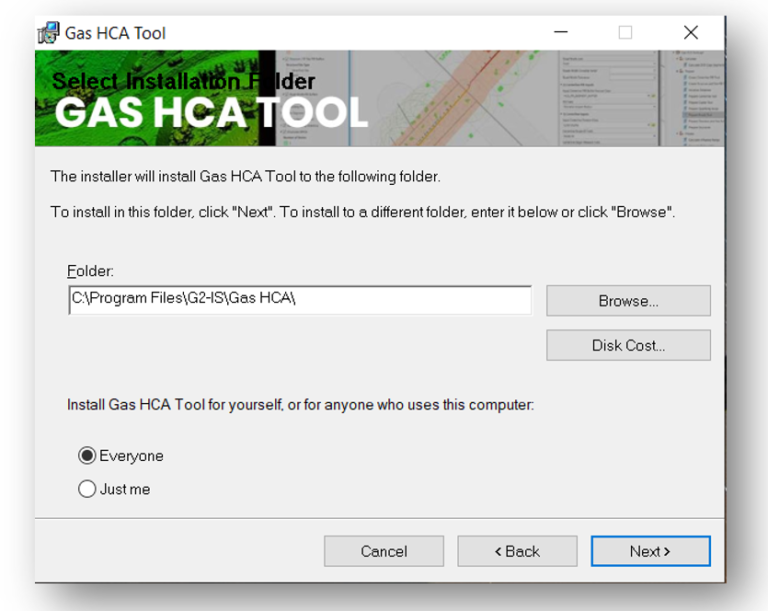
Next, select your desired installation directory by clicking on the ‘Browse’ button
and navigating to the destination path. If no selection is made, the tool will install in the Windows Program
Files directory; C:\Program Files\G2-IS\Gas HCA. Click on the ‘Next’ button to continue the installation.
-
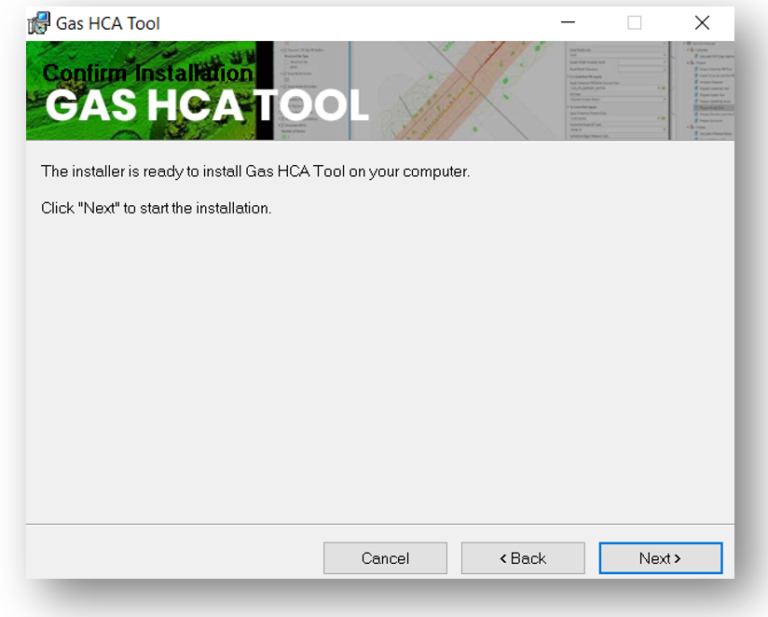
The ‘Confirm Installation’ window appears, and you must select ‘Next’ to continue the installation; otherwise, select ‘Cancel’ to exit the installation and ‘back’ to view the
previous screen.
-
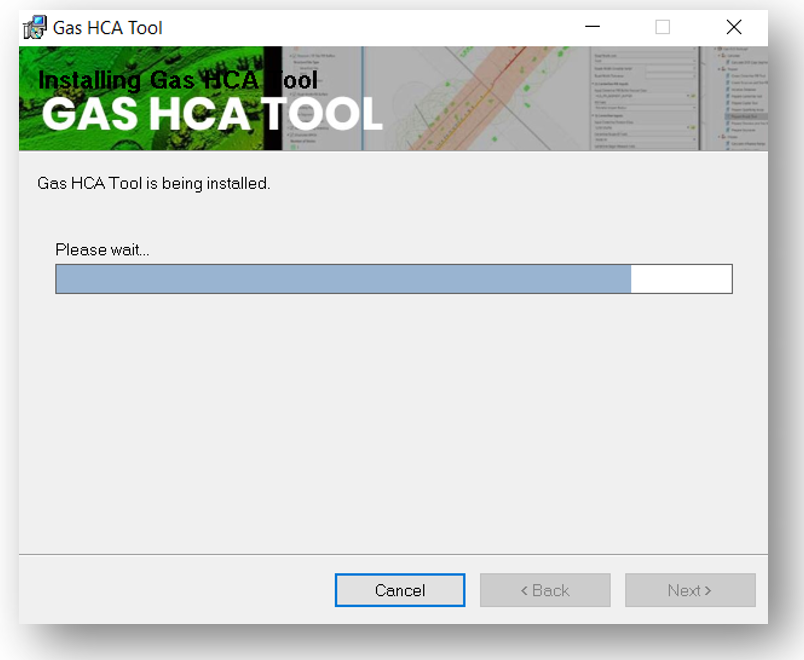
In a typical Widows setting download environment procedure, the system will
prompt you with a message indicating changes for which the downloader
requires access to system files. You must grant access for the installer to
continue the install. After doing so, the installer will show a progress bar
for your installation. At any time during this process, you can select the
‘Cancel’ button to end and exit out of the installation.
-
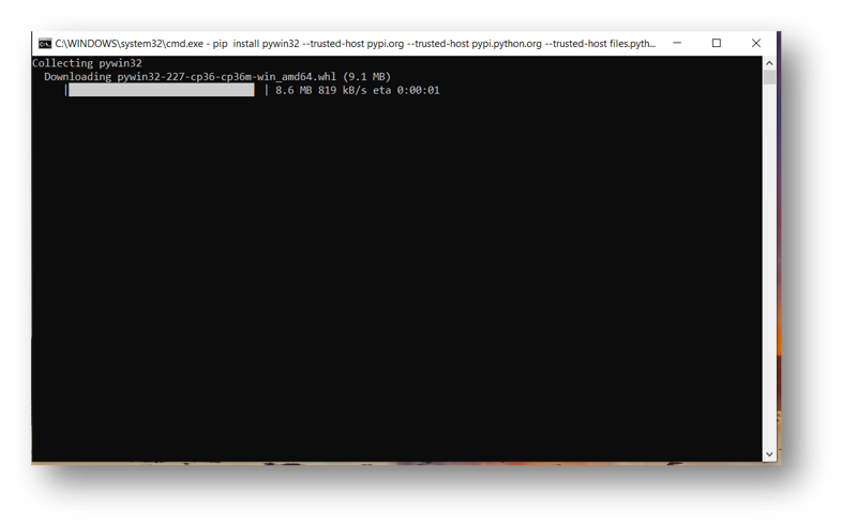
The command prompt window installs your dependent Python packages for the
Gas HCA Tool. If this window does not exit prior to seeing the ‘Installation
Complete’ window in Step 7, do not exit this window. The command prompt will
run its cycle and close the window when all packages have been successfully
installed.
-
Lastly, the installer will display an ‘Installation Complete’ window. This
window confirms the successful installation of the Gas HCA Tool. Select the
‘Close’ button to exit out of the installer window alone. If the Step 6
command prompt window is still running, do not exit out of this window.
Simply let it run the installation process. The window will exit after
successful completion of installation.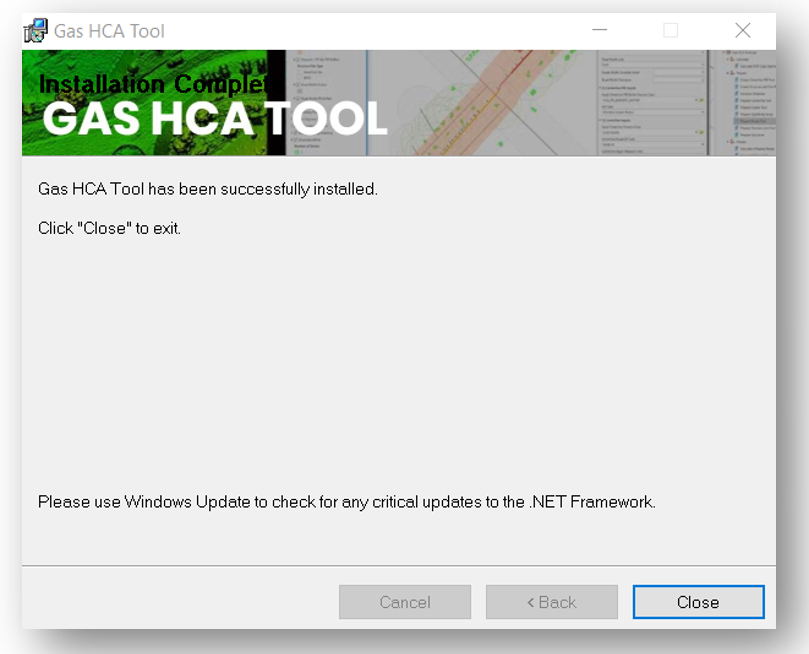
Uninstalling
Instructions for uninstalling the Gas HCA Tool are provided using Windows 10 Pro operating system.
It is advised that all ArcGIS applications be closed prior to the
uninstalling the Gas HCA Tool.
To uninstall the Gas HCA Tool:
1. Open the Programs and Features window in the Windows Control
Panel.
2. Type in ‘Gas HCA’ and select the Gas HCA application.
3. Click ‘Uninstall’ to begin uninstalling the Gas HCA Tool.
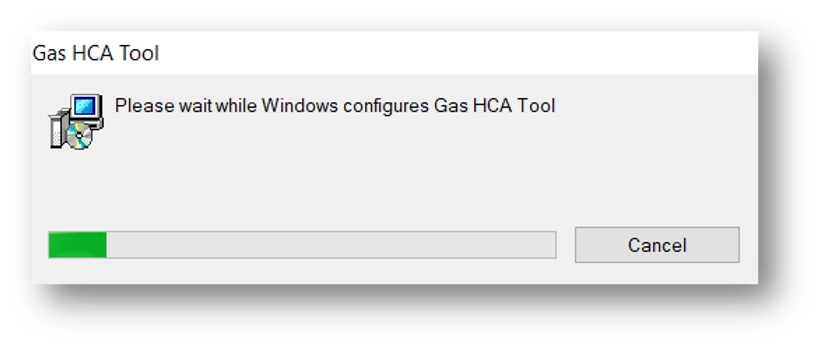
4. The installer will show an uninstall progress screen window. Click ‘Cancel’ if you wish to stop
the uninstall. Otherwise,
do nothing and wait for the uninstaller to remove the Gas HCA Tool.
Uninstall Help:
If you are still seeing the Gas HCA Tool in your program fiels after the
uninstallation process is complete,
navigate to the link below for further assistance and support from Microsoft.
- Click on the link provided above.
-
Navigate to and select the ‘Download’ button. Once the download is complete,
open the file.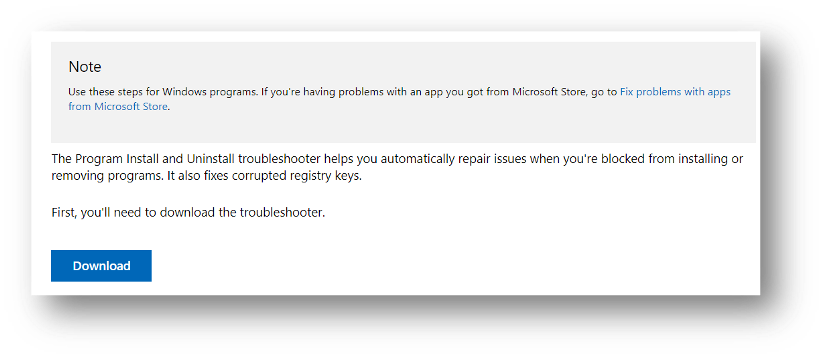
-
The Program Install and Uninstall troubleshooter window will appear. Select
‘Next’ to continue. Otherwise, select ‘Cancel’ to exit.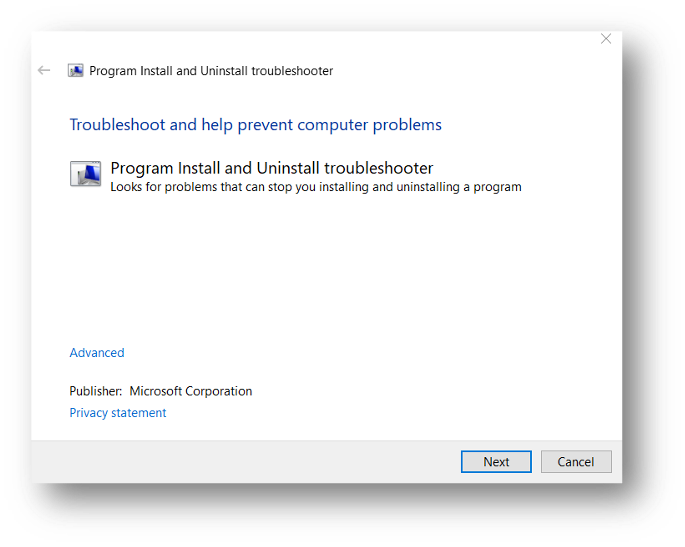
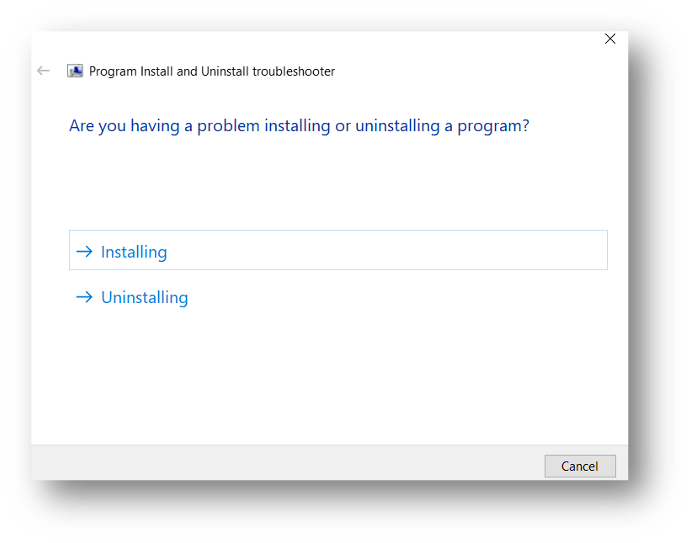
-
Next, Select the ‘Uninstalling’ option.
-
After the troubleshooter finishes, a
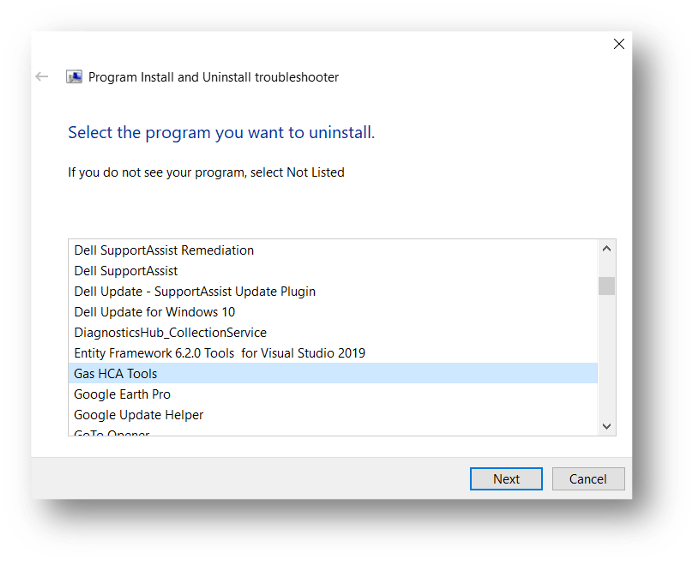
search window will appear that prompts you to ‘Select the program you want to uninstall.’ Use the scroll bar to find and select ‘Gas HCA
Tool’. Then, select ‘Next’ to uninstall and finish the uninstallation process.